
THE DETAILS, IN ONE PLACE
Find the rule behind the workflow.
Look up permissions, record statuses, and public customer or carrier links when you need an exact answer.
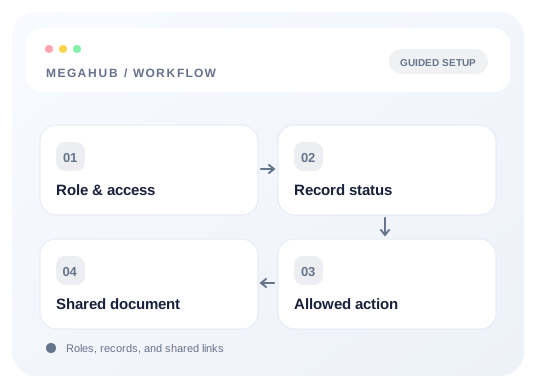
What you’ll learn
- Understand actions and record visibility
- Choose statuses in the context of a job
- Identify what a customer or carrier link exposes
Before you begin
- The role and record type you are investigating
- The current status and intended next action
- An administrator when access needs changing
The complete picture
Understand the workflow
Use permissions and visibility together
A permission determines whether an action is allowed. Record visibility determines which data someone can access. A role with an action permission may still be restricted to its own records or teams. Compare the role and assignment before treating a missing record as lost data.
Read statuses by record type
Leads, quotes, orders, dispatches, and invoices have separate lifecycles. The same everyday word can describe different states on different records. Check the status reference for the record you are editing and use the lifecycle guide to understand the next action.
Treat public links as access to a specific document
Customer and carrier links allow limited access without a CRM login. Read the link guide before forwarding one: it explains what that recipient can view or do. Share only the link intended for the correct recipient and record.
Use the guides to resolve a concrete question
Start with the symptom: a missing action, an unexpected state, or a recipient’s link. Then use the matching reference and its related workflow guide. Contact support with the role, record type, and error instead of sharing passwords or private keys.
Choose your next guide
Detailed instructions, examples, and the checks to make along the way.
- GUIDE 01
Every permission, and who has it
The complete list of 52 permissions, the seven roles, and what leading a team adds on top.
10 min read - GUIDE 02
Statuses: every value and what it means
The complete set of statuses on leads, quotes, orders, dispatches and invoices.
5 min read - GUIDE 03
The links you send customers and carriers
Every page MegaHub sends out by link rather than login, and what each one shows.
5 min read
Check your progress
Your setup checklist
Use this checklist while following the guide. Your selections are for this reading session and do not change CRM settings.
0 of 5 complete
Common questions, clear next steps
Open a question to find the check that helps you move forward.
Permission is present, but a record is missing
Check ownership, team membership, assignment, and filters. Action permissions and record visibility are separate concerns.
A customer does not have a CRM account
Use the specific public link supported for that document or action. Do not share a teammate’s login as a substitute.
Should I forward a public document link?
First check what that link permits and whether the new recipient is intended to see that record. A link can grant access without asking for a login.