
KEEP THE CONVERSATION TOGETHER
Send with confidence. Receive in one place.
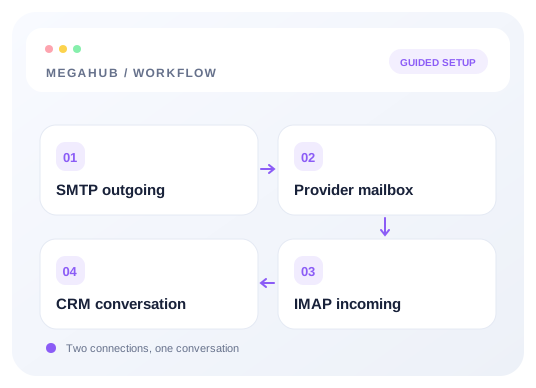
Connect your inbox, choose the right provider template, and verify both sides of the conversation.
What you’ll learn
- Configure SMTP and IMAP with a preset
- Reuse credentials or enter separate IMAP details
- Test delivery and receiving independently
Before you begin
- An existing mailbox or a provisioned company mailbox
- An app password when required by your provider
- A mail plan that permits SMTP and IMAP access
The complete picture
Understand the workflow
Choose the correct mailbox route
Inbox → Mailboxes manages agent inboxes. Connect an existing provider mailbox if your brokerage uses the connected route; hosted-domain mailboxes are provisioned by the administrator. Settings → Email manages a separate brokerage sending account.
Let a preset handle the servers
Choose Zoho, Zoho Pro, Gmail / Google Workspace, Yahoo, Fastmail, or iCloud. The preset fills both servers and security settings. Use Advanced settings for a different regional server, or Custom for a provider with its own configuration.
Enter credentials once when appropriate
New setups can reuse the SMTP username and password for IMAP. Turn reuse off when the incoming username or password differs. Blank replacement fields preserve saved passwords; saving new reused credentials updates both connections.
Verify the full conversation
Save, send a real SMTP test, and test the IMAP connection separately. Then send a message from another mailbox, wait for synchronization, and reply from MegaHub. A saved configuration or a successful login alone does not prove the recipient received your message.
Choose your next guide
Detailed instructions, examples, and the checks to make along the way.
- GUIDE 01
Connect your inbox with SMTP and IMAP
Choose a provider preset, enter your credentials once, and test outgoing and incoming mail separately.
9 min read - GUIDE 02
Making sure your email actually arrives
SPF, DKIM and DMARC in plain terms, and what to do when quotes land in spam.
6 min read - GUIDE 03
Your mailbox, inside MegaHub
Customer mail arrives here, replies come back to you, and every message you send is filed in Sent.
6 min read - GUIDE 04
Writing a message, and attaching files
Formatting, attachments, and picking a recipient out of the customer book.
5 min read - GUIDE 05
Who a customer sees a message from
Every message to a customer leaves through an agent's mailbox — including the ones nobody pressed send on.
4 min read
Check your progress
Your setup checklist
Use this checklist while following the guide. Your selections are for this reading session and do not change CRM settings.
0 of 5 complete
Common questions, clear next steps
Open a question to find the check that helps you move forward.
Sending works, but new messages are missing
Test IMAP independently. Check the incoming host, credentials, account-level IMAP access, and the mailbox address receiving the message.
Which Zoho option should I use?
Use Zoho for personal servers and Zoho Pro for paid organization servers. Your account’s data center may require a regional override in Advanced settings.
Why does a provider reject my password?
Many providers require an app password and may restrict third-party access by plan or account policy. Use the provider’s published credentials and access settings.