
KEEP THE CONVERSATION TOGETHER
Connect your inbox with SMTP and IMAP
Choose a provider preset, enter your credentials once, and test outgoing and incoming mail separately.
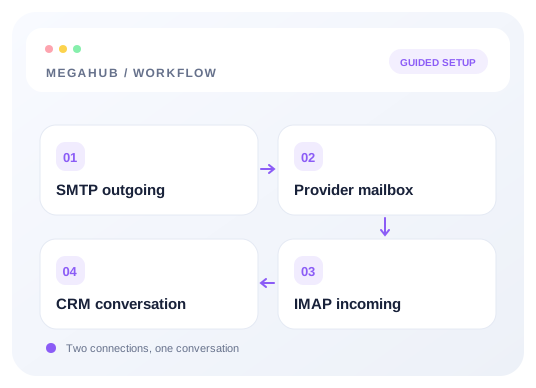
SMTP sends messages through your provider. IMAP reads the incoming mailbox into MegaHub. A complete third-party inbox setup needs both. Your mailbox settings are under Inbox → Mailboxes; Settings → Email manages the brokerage’s separate outgoing account.
Before you start
- 1Have an existing mailbox and permission to use Inbox. An administrator can manage agent mailboxes with mailbox-management permission.
- 2Obtain an app password from your provider when required. Do not assume your ordinary sign-in password is accepted.
- 3Confirm your provider and plan allow SMTP and IMAP. Enable IMAP in the provider’s settings if necessary.
- 4Know whether you use a personal Zoho account or a paid Zoho organization account, and which regional servers your account uses.
1. Open your mailbox setup
- 1Open Inbox → Mailboxes.
- 2For your own mailbox, add the email address you already use if Connect my mailbox is available. Then open Configure.
- 3For an administrator configuring an agent, connect that agent’s address and select Inbox setup from the mailbox row.
- 4If the brokerage uses hosted mail on its own domain, its administrator provisions mailboxes. Ask them to resolve a missing mailbox instead of entering an unrelated third-party address.
2. Choose a provider template
The provider selection fills both SMTP and IMAP server names, ports, and security settings. With a preset, you only need your username and password. The IMAP section stays visible so you can see how receiving is configured.
| Preset | SMTP server / port | IMAP server / port |
|---|---|---|
| Zoho | smtp.zoho.com / 465 | imap.zoho.com / 993 |
| Zoho Pro (paid organization) | smtppro.zoho.com / 465 | imappro.zoho.com / 993 |
| Gmail / Google Workspace | smtp.gmail.com / 465 | imap.gmail.com / 993 |
| Yahoo Mail | smtp.mail.yahoo.com / 465 | imap.mail.yahoo.com / 993 |
| Fastmail | smtp.fastmail.com / 465 | imap.fastmail.com / 993 |
| iCloud Mail | smtp.mail.me.com / 587 | imap.mail.me.com / 993 |
| Custom provider | Enter your provider’s SMTP settings | Enter your provider’s IMAP settings |
3. Enter credentials for sending and receiving
- 1In SMTP — Outgoing mail, enter the username, usually your full mailbox address, and the app password.
- 2For a new setup, Use the same username and password as SMTP is selected in IMAP — Incoming mail. This applies the entered credentials to both connections.
- 3If your provider needs different IMAP credentials, turn off that checkbox and enter the IMAP username and password separately.
- 4Set the name on outgoing messages if you want to change it, and check that This agent may send is enabled.
- 5Save. The form requires SMTP and IMAP servers, valid ports, and new or already-stored passwords for a third-party setup.
4. Test outgoing mail
- 1In the sending test section, enter an email address you can check.
- 2Select Send test. This sends a real message through the saved SMTP settings.
- 3Confirm the message arrived and check its sender address and spam folder.
- 4If the test fails, read the provider’s error, correct the settings, save, and test again.
5. Test incoming mail
- 1In IMAP — Incoming mail, select Test the connection after saving.
- 2A successful result reports the folders it found.
- 3Send an email from another mailbox to the connected address. Open Inbox and check that it appears after synchronization.
- 4Reply from MegaHub and check the other mailbox receives your reply. This verifies the full conversation, beyond a successful login.
Advanced server settings
Open Advanced server settings inside the SMTP or IMAP section to override a preset. Custom provider shows the server fields immediately. Use the host, port, and security mode published for your exact account.
| Connection | Security setting |
|---|---|
| SMTP port 465 | Enable Connect over TLS for an encrypted connection from the start. |
| SMTP port 587 | Disable implicit Connect over TLS; the connection upgrades using STARTTLS. The iCloud preset uses this mode. |
| IMAP port 993 | Enable Connect over TLS. This is the incoming default for the presets. |
Updating an existing connection
Passwords are never returned to the form. A blank replacement password preserves the stored password. If you enable reuse and enter a new SMTP password, saving updates both SMTP and IMAP passwords. If reuse is off, enter replacements independently. Save changes before testing; tests use the saved configuration.
Troubleshooting
| Problem | What to check |
|---|---|
| Authentication failed | Use the correct full username and app password. Confirm the account permits third-party access. |
| SMTP works but the inbox is empty | Test IMAP separately. Check its server, password, IMAP access, and the address receiving the test message. |
| IMAP works but sending fails | Check SMTP credentials, sender authorization, and whether sending is enabled. |
| A Zoho company account refuses the personal preset | Choose Zoho Pro for paid organization servers, or use the account’s regional servers in Advanced settings. |
| iCloud IMAP cannot authenticate | Turn off credential reuse and try the IMAP username specified by Apple for your account. |
| Connection times out | Check host spelling, port, and security mode, then test again. |
| Missing IMAP prevents saving | Complete the incoming settings. Third-party inbox setup requires receiving as well as sending. |
Read next
- Your mailbox, inside MegaHubCustomer mail arrives here, replies come back to you, and every message you send is filed in Sent.
- Writing a message, and attaching filesFormatting, attachments, and picking a recipient out of the customer book.
- Making sure your email actually arrivesSPF, DKIM and DMARC in plain terms, and what to do when quotes land in spam.
- Connect a provider and land your first leadCreate a lead source, share its posting credentials, test the payload, and confirm the lead reaches an agent.
Check your progress
Start with these steps
Use this checklist while following the guide. Your selections are for this reading session and do not change CRM settings.
0 of 4 complete
Continue exploring email and messaging
Making sure your email actually arrives
SPF, DKIM and DMARC in plain terms, and what to do when quotes land in spam.
6 min read →
Your mailbox, inside MegaHub
Customer mail arrives here, replies come back to you, and every message you send is filed in Sent.
6 min read →
Writing a message, and attaching files
Formatting, attachments, and picking a recipient out of the customer book.
5 min read →
Who a customer sees a message from
Every message to a customer leaves through an agent's mailbox — including the ones nobody pressed send on.
4 min read →