
BUILD YOUR WORKSPACE
Your first week on MegaHub
The order to do things in, so nothing is blocked on something you have not set up yet.
Public documentation5 min read
Explore Getting started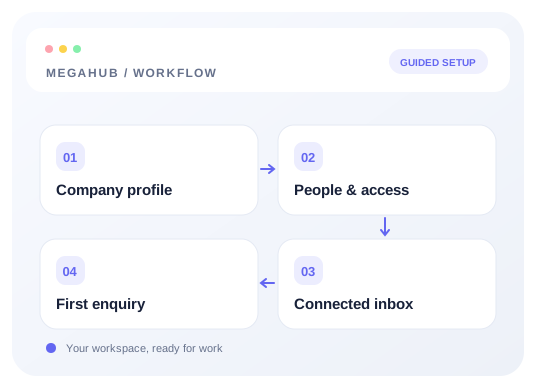
Everything below can be done in any order, but this one avoids the dead ends — each step unblocks the next.
Day one: the company
- 1Settings → Company: your legal name, MC and DOT numbers, address and phone. These appear on every quote and carrier agreement, so getting them right once saves reissuing paperwork.
- 2Upload your logo. It heads every PDF and the pages your customers see.
- 3Inbox → Mailboxes: connect each agent’s mailbox with SMTP and IMAP, then test both connections. Settings → Email holds the brokerage’s separate outgoing account.
Day two: people
- 1Settings → Users: invite your agents and dispatchers. Roles decide what each can see — an agent sees their own leads, a manager sees their team's.
- 2Settings → Teams: group them if you run more than one desk. Team leads can reassign work within their team.
- 3Set working hours on each user. Lead distribution skips anyone outside theirs.
Day three: money
- 1Settings → Quote settings: your rate card, so quotes price themselves rather than being typed from memory.
- 2Commission plans, if agents are paid on margin.
- 3Settings → Merchant: connect a processor if you take cards.
Day four: the leads
- 1Settings → Lead sources: create a posting key per provider and send each one their URL and key.
- 2Ask each vendor to run against the test endpoint first, and check what it says was ignored.
- 3Settings → Lead distribution: decide who gets what.
- 4Turn one vendor on. Watch a real lead land before turning the rest on.
Read next
Check your progress
Start with these steps
Use this checklist while following the guide. Your selections are for this reading session and do not change CRM settings.
0 of 3 complete