
FROM ENQUIRY TO OPPORTUNITY
Connect a provider and land your first lead
Create a lead source, share its posting credentials, test the payload, and confirm the lead reaches an agent.
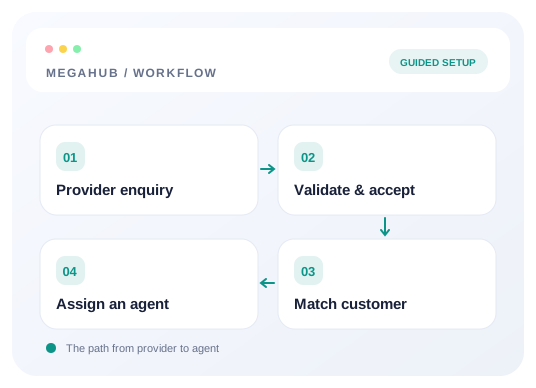
This guide takes an administrator and a lead provider from an empty connection to one lead visible in the CRM. The administrator creates the source and assignment settings; the provider sends the HTTP request. A website integration can use the same endpoint from its server.
Before you start
- 1Sign in with access to Settings → Lead sources. Ask an administrator if that page is unavailable.
- 2Decide which vendor or website this source represents. Give each provider its own source and key.
- 3Have a sample enquiry with an email address or phone number. Include origin_zip and destination_zip to create a usable route.
- 4Choose the team or agent who should receive new work. Confirm they are active and eligible for assignment.
1. Create the source and copy its credentials
- 1Open Settings → Lead sources and add a source.
- 2Enter its name and unique code, select the source type, and configure costs if you track provider spending.
- 3Leave Issue a posting key enabled for a source that will submit leads by API, then save.
- 4Copy the newly issued posting key and the posting URL shown with it. Keep the key in a secure place: it is shown once.
- 5Send the provider the exact posting URL, the X-Api-Key header value, and the example payload below.
2. Set up where leads should go
- 1Configure the source’s team and the Lead distribution rules for incoming work.
- 2Check team membership, active users, working hours, and open-lead caps. An ineligible agent cannot receive automatic assignment.
- 3Review the rule order and matching conditions. Existing leads are not reassigned just because you change a rule.
If nobody qualifies, the lead can remain unassigned. That means it was received, but an administrator or someone with assignment access must pick it up. The distribution guide explains teams, ratios, caps, and the unassigned pool.
3. Run a test without creating a lead
Use the posting URL with /test added at the end. It authenticates the same way as a live post, reports parsed fields and route information, and writes no lead.
curl -X POST "https://megahubcrm.com/api/inbound/YOUR_TENANT_KEY/test" \
  -H "X-Api-Key: YOUR_POSTING_KEY" \
  -H "Content-Type: application/json" \
  -d '{
    "first_name": "Dana",
    "last_name": "Whitfield",
    "email": "dana@example.com",
    "phone": "512-555-0142",
    "origin_zip": "33101",
    "destination_zip": "30301",
    "vehicle_year": "2022",
    "vehicle_make": "Jeep",
    "vehicle_model": "Wrangler",
    "operable": "yes",
    "transport_type": "open",
    "comments": "Integration test enquiry",
    "metadata": { "Reference": "00123", "Budget": 850, "Flexible": true }
  }'
Include additional information
Add an optional metadata object to the JSON payload for small details such as a vendor reference, budget or pickup preference. The same payload works with the posting URL issued in Settings, its /test endpoint, and each lead in a /batch submission.
{ "metadata": { "Reference": "00123", "Budget": 850, "Flexible": true, "Preferred date": "2026-10-20" } }| Detail | Allowed format |
|---|---|
| Labels | Up to 40 characters; start with an ASCII letter, then use letters, numbers, spaces, underscores or hyphens. constructor, prototype and __proto__ are reserved. |
| Short text | One line, up to 160 characters. No strings starting with { or [ after whitespace. |
| Numbers | JSON numbers within ±9007199254740991. Zero is preserved. |
| Yes / No | JSON true or false. False is preserved. |
| Dates and references | Dates are YYYY-MM-DD strings. Quote identifiers such as 00123 to keep leading zeros. |
| Limits | Up to 30 details. No null values, arrays, nested objects or JSON-encoded metadata strings. Use Content-Type: application/json. |
Check parsed.metadata in the test response. After a live submission, open the lead and check Additional information directly below Actions. Invalid metadata returns 400 BAD_REQUEST; in a batch it fails validation before any leads are created. The API reference includes the full contract and update behavior.
| Test result | What to check |
|---|---|
| wouldCreate | Must be true before going live. A false value means the payload would fail the contact-details rule. |
| parsed | Confirm the email, phone, name, vehicle, transport type and metadata match the enquiry. |
| route | Confirm the origin and destination ZIPs resolve as expected. |
| ignoredFields | Fix field-name mismatches. Unknown fields are ignored, so a successful response alone does not prove the data mapped correctly. |
| warnings | Review each warning, particularly missing contact details, ZIPs, or vehicle information. |
4. Submit one live lead
Use the same header and validated payload against the original posting URL, without /test. This creates real work. Agree with the provider which test enquiry you are submitting so it is not mistaken for a customer request.
POST https://megahubcrm.com/api/inbound/YOUR_TENANT_KEY
X-Api-Key: YOUR_POSTING_KEY
Content-Type: application/json{
"accepted": true,
"leadNumber": 10482,
"leadId": "9f2c1b7e-4a3d-4c21-8f0e-2b6d5a91c3f4",
"duplicate": false
}A successful single submission returns 201 Created. Store the leadNumber and leadId so both sides can identify the same enquiry. If duplicate is true, the lead was still accepted; it is flagged for review.
5. Confirm it landed correctly
- 1Open Leads and find the returned lead number. Clear search and status filters if necessary.
- 2Check the source name, contact details, route, vehicle and Additional information against the original payload.
- 3Check the assigned agent or the unassigned pool. An agent’s account may not have permission to see another agent’s work.
- 4Have the receiving agent open the lead and confirm they can act on it.
- 5Once one complete round trip works, let the provider use the live URL for new enquiries. Enable batch posting separately only if needed.
Troubleshooting the first lead
| Symptom | Action |
|---|---|
| 401 / INVALID_POSTING_KEY | Compare the tenant key in the URL and X-Api-Key value with the issued credentials. Confirm the source is active and the key has not been rotated. |
| 400 / CONTACT_REQUIRED | Send at least email or phone using the documented field names. |
| A test succeeds but no lead appears | The /test endpoint never creates records. Submit once to the live endpoint. |
| 201 but a blank route | Check origin_zip and destination_zip, not just city/state. Inspect ignoredFields and warnings in a dry run. |
| 201 but the agent cannot find it | Search by leadNumber as an administrator, clear filters, and check assignment and record visibility. |
| A duplicate flag | Review the earlier customer enquiry before contacting the customer twice. Accepted duplicates remain in the CRM. |
| Batch refused | Batch posting is disabled by default. Set its per-source limit and inspect the individual results of a 207 response. |
Your go-live checklist
- 1The provider uses its own source, current key, and correct live URL.
- 2A dry run maps the contact, route, and vehicle fields correctly.
- 3One live submission returns a lead number that you can find in Leads.
- 4The expected agent can see the lead, or your team knows how to handle unassigned work.
- 5The provider records acknowledgements and reports failures rather than blindly resending accepted enquiries.
Read next
- Generating a posting key and endpointCreate the credentials a lead provider needs, test them, and rotate them if they leak.
- Inbound lead API referenceEndpoint, authentication, every field MegaHub reads, batch posting and the responses to expect.
- Deciding which agent gets a leadHow an inbound lead finds a desk, how a ratio is honoured when leads arrive one at a time, and what happens when nobody is eligible.
- Connect your inbox with SMTP and IMAPChoose a provider preset, enter your credentials once, and test outgoing and incoming mail separately.
Check your progress
Start with these steps
Use this checklist while following the guide. Your selections are for this reading session and do not change CRM settings.
0 of 4 complete
Continue exploring leads
Troubleshoot lead delivery and assignment
Find whether an enquiry failed authentication, mapped incorrectly, stayed unassigned, or is hidden by permissions.
6 min read →
How MegaHub CRM lands a lead
What happens between a provider posting an enquiry and an agent seeing it on their board.
6 min read →
Setting up your lead sources
Creating a source, what each field changes, and what happens to a provider when you switch one off.
6 min read →
Deciding which agent gets a lead
How an inbound lead finds a desk, how a ratio is honoured when leads arrive one at a time, and what happens when nobody is eligible.
6 min read →