
MOVE THE JOB FORWARD
Splitting an order across two trucks
Moving some vehicles onto a second order without the totals drifting apart.
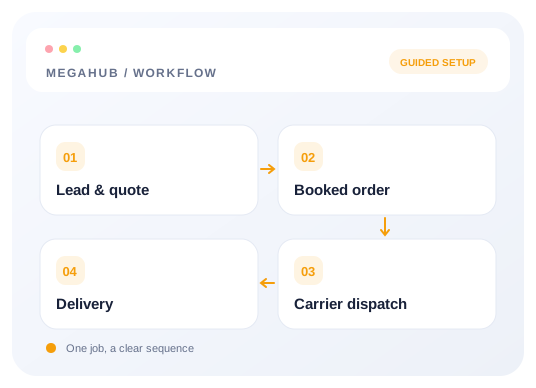
A five-car load rarely goes on one truck. Create a sub order on the original, tick the vehicles that are moving, and they come off onto a new order that dispatches on its own. The two stay linked, so the history of the job survives.
The money always adds up
Whatever the new order takes, the original loses. The dialog shows both sides as you tick, because this is the part that goes wrong quietly: copying the price onto the new order instead of moving it would double-count the job in every revenue report, and nothing downstream would catch it.
By default the split follows the vehicle count — three of five cars takes three fifths of the price and three fifths of the carrier pay. Type over either figure if the real split is different. A sub order cannot be worth more than the order it came from, and it has to leave at least one vehicle behind; to move the whole load, edit the original instead.
Split before you dispatch
Once a carrier holds the sheet, the order cannot be split. A dispatch sheet describes a specific set of vehicles, and taking some of them away would leave a driver holding paper for a load that no longer exists in that shape. Split first, then dispatch each part to its own carrier.
Read next
Check your progress
Review your setup
Use this checklist while following the guide. Your selections are for this reading session and do not change CRM settings.
0 of 5 complete
Continue exploring day to day
Quoting: rate cards, vehicles and margin
How a price is built, where the numbers come from, and how the header and the vehicles stay in step.
6 min read →
Getting your data out
CSV exports of leads, quotes and orders, and what the file contains.
3 min read →
Lead to delivery: how a job moves
The five records an enquiry passes through, what each one is for, and what carries across.
7 min read →
Dispatching: posting, offers and the sheet
Getting a booked order onto a truck — load boards, carrier checks, and what the driver receives.
7 min read →